 tab to display a list of Firm and Forwarder ID's.
 The Management Tab allows you to set different option for the different Forwarders sending you accounts.
From the You've Got Claims Interface, click the tab to display a list of Firm and Forwarder ID's.

The Interface will automatically add new Forwarders to this table if included in the import/download file. However, you can manually add as many Forwarders as you need.
If the Firm ID has not been added, you will have to add it first before adding the Forwarder ID.
To add a new Forwarder ID for an existing Firm ID, click the  button to display the New Forwarder ID screen.
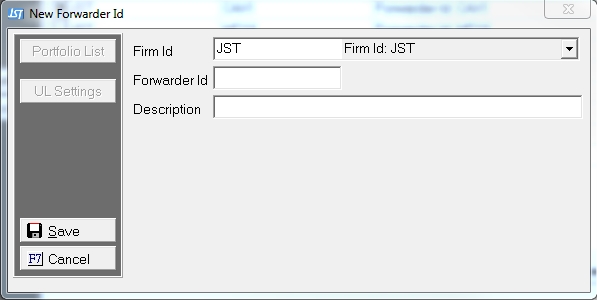
Select the Firm ID from the  list.
list.
Enter the Forwarder ID and a description of the Forwarder. The Interface will just add the Forwarder ID again in the description which can be modified to be a better descriptor at any time.
Note: Forwarder IDs must match what is send in the file for the settings to be used. The Forwarder ID is the ID before any periods. The Portfolio ID is listed after the period and will be added on another screen. So, for VAXX.CBANK, the Forwarder ID is VAXX and the Portfolio ID is CBANK
Click the  button to add the new Forwarder ID.
Click the  button to modify a Forwarder ID. Click the
  button to select the highlighted Forwarder ID.
From the Management Tab in the YGC Interface,
Click the  button to display the Firm Management screen.
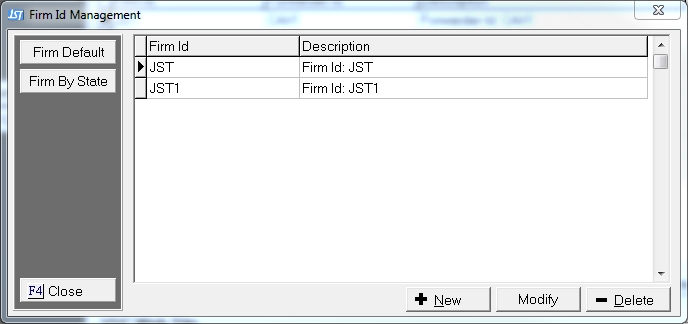
Click the button to add a new Firm ID.
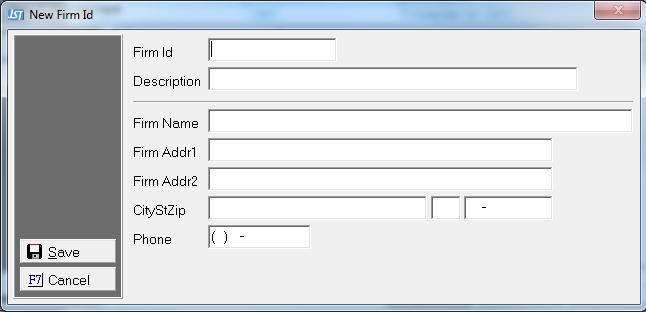
Enter the Firm ID that will be used in the files being sent by YGC and any description you would like. The Interface will add any new Firm IDs sent in the import/download files with the same number in both the ID and description field.
The Firm Demographic Information can be entered here at the ID level. This would be appropriate if you have several Firm IDs in different states. If you only have one location or only want one location reported to YGC, use the Firm Default instead of entering the Demographics on all Firm IDs.
If your Firm has only one ID or has several with the same address or you want to use the same address, set the Firm Demographics here.
Click the  button on the Firm ID Management Screen.
to display the Firm Default Screen.
Portfolio List
UL Settings